
What is an ergonomic monitor?
The term sounds technical, but the essence is simple: an ergonomic monitor adapts to you instead of the other way around. It starts with a stable base and ends with adjustments that support a neutral working posture. You want to be able to position the screen so that your eye line roughly aligns with the top edge, that you can tilt the image slightly backward against reflections, that you can swivel the screen when colleagues are watching, and that you can rotate it to portrait mode (pivot) for code, documents, or dashboards when necessary. This includes a matte, flicker-free display with a (Natural) Low Blue Light mode that spares the eyes without making the colors unusably warm.
Only when you have this picture in mind do you start looking at the specifications. Ergonomic models distinguish themselves from standard monitors: they often only have tilt and force you to use workarounds with stacks of books or loose arms. In professional environments, and especially in hybrid work, you want the monitor itself to be the backbone of your workspace.

Ergonomic monitors support a neutral working posture, with the right eye height, viewing distance, and arm and leg angles.
The difference in practice
Before we dive into lists: imagine two identical desks. On the left is a 27-inch screen with full height adjustment and pivot. On the right is a model that can only tilt. The left screen can be effortlessly positioned at eye level; your shoulders drop, your chin remains neutral. You tilt it slightly to portrait mode to read log files, or you position the screen perpendicular to the window so that the matte coating reduces reflections. On the right, it remains a matter of fitting and measuring – resulting in a barely acceptable position and slightly more muscle tension. That is the difference you notice after hours, not after minutes.
This difference translates into a few concrete features that every ergonomic model should offer:
 
- Full ergo base: height adjustment (high/low), tilt, swivel, and pivot provide freedom for task and posture;
- Anti-reflective and uniform brightness: a matte coating and stable backlight reduce eye strain and squinting in open office environments;
- Eye comfort: flicker-free dimming and (Natural) Low Blue Light reduce eye fatigue;
- Connections that enhance workflow: USB-C with Power Delivery powers your laptop, provides display, and connects peripherals via one cable. Options like daisy-chain and KVM make multi-device setups manageable.
Together, these four points yield something tangible: less muscle tension, less eye fatigue, and a workspace that adapts to both task and user.
Decision aid: what to look for?
Those purchasing for a team or entire organization recognize the tension: you want a uniform fleet that is easy to manage, but also models that support different work profiles. The good news: a few core choices bring 80% of the ergonomic benefits within reach.
1. Size & resolution
For most office tasks, 24-27 inches is ideal. At 27” QHD (2560×1440), text appears significantly sharper than on Full HD, and you maintain enough workspace without scaling issues. Those who work in detail – think image editing, CAD drawings, or datasheets – benefit from 4K on 27-32”. Teams that use many windows side by side (sales, operations, monitoring) do well with a 34” ultrawide (3440×1440). When using larger screens, pay attention to desk depth (about 75 cm or more) to maintain a comfortable distance.
2. Adjustability
This is the non-negotiable basis. Explicitly check whether the monitor has height adjustment, tilt, swivel, and pivot. If height adjustment is missing, you force users to use a loose arm or riser; that is possible but increases variation and management burden. A consistent ergo base is often the quietest and cheapest solution in rollouts.
3. Image comfort & panel
IPS panels provide predictable colors and wide viewing angles. Variants like IPS Black increase contrast – nice for text on light backgrounds. Combine that with flicker-free (DC-dimming) and a Low Blue Light mode that doesn’t ruin the white balance. It’s about the endurance of the eyes, not demo colors on a trade show floor.
4. Connections & workflow
USB-C with Power Delivery (65-90 W) is the game changer for hybrid work: one cable charges your laptop, drives the display, and connects mouse, keyboard, and network via the built-in hub. In larger setups, you want daisy-chain (DisplayPort MST) to link a second screen without an extra dock. And if you work between two systems? Then a KVM switch in the monitor is worth its weight in gold: one key, everything switches together.
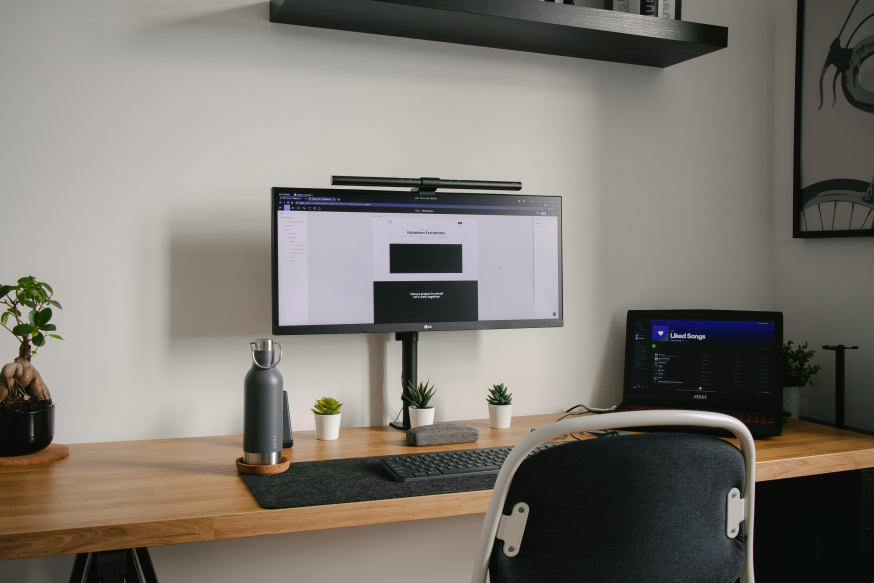
USB-C monitors increasingly turn one screen into a dock, with fewer cables and less hassle in flexible and home workspaces.
5. Scenarios (choose what fits)
For office/remote work, a 27” QHD screen with USB-C and full ergo base works in 9 out of 10 cases. IT/dev benefits from pivot and KVM for log files and multiple machines. (Light) creative work requires 4K or at least high sRGB coverage with uniform brightness. Consultancy/operations often chooses ultrawide or narrow bezels with daisy-chain for dashboards without cable spaghetti.
How to adjust it properly (micro-guide)
A good monitor that is incorrectly adjusted is like an ergonomic chair without a height button. Therefore, take one minute per workspace to properly adjust the monitor – it pays off immediately. Bring the top edge to eye level, maintain a viewing distance of 50-80 cm (larger screen = slightly further), give the screen a slight tilt backward, and place it directly in front of you. Position it perpendicular to windows to avoid glare. If you work with two screens, center your primary; if used equally, place both symmetrically. Set a Low Blue Light mode in the evening – it’s easier on the eyes and better for your sleep rhythm.

The benefits of ergonomic monitors lie not only in the screen but in the adjustment of the entire workspace.
Shortlist: 6 strong ergonomic monitors (2025)
You are not looking for a spec monster, but peace at the desk and less hassle for IT. Therefore, we have selected six screens that excel in practice: a stable ergo base, eye-friendly display, and smart USB-C connectivity as a foundation. Models that you can roll out in the office and remote workspaces without explanation – with one ultrawide included for teams that live in windows. Availability and model numbers (-P/-Q/-G5 etc.) may vary by region, but this is your solid starting point:
Dell UltraSharp U2723QE – 27” • 3840×2160 (4K) • IPS Black
Ergonomics: full ergo base; matte, flicker-free display; Low Blue Light mode; extensive USB-C hub with LAN
Workflow: razor-sharp text; high contrast and calm in bright office light; clean-desk workspace via one cable, including LAN via the hub.
Best for: general office, data/BI, (light) creative
EIZO FlexScan EV2795 – 27” • 2560×1440 (QHD) • IPS
Ergonomics: full ergo base; flicker-free; Low Blue Light mode; USB-C dock with daisy-chain
Workflow: connect a second screen via one cable; built-in LAN for wired network connection; uniform, calm screen display; quiet, stable base.
Best for: demanding office environments, consultancy, support
Lenovo ThinkVision T27h-30 – 27” • 2560×1440 (QHD) • IPS
Ergonomics: full ergo base; Natural Low Blue Light; narrow bezels; USB-C hub
Workflow: pleasant for long reading tasks and meetings; suitable for dual setup thanks to DisplayPort output (MST) without extra dock.
Best for: remote work + office with a lot of screen time
HP E27u G5 – 27” • 2560×1440 (QHD) • IPS
Ergonomics: full ergo base; Low Blue Light mode; USB-C (PD 65W) with hub
Workflow: clean-desk setups; manageable in large rollout
Best for: organizations looking to standardize and simplify management
BenQ GW2790QT – 27” • 2560×1440 (QHD) • IPS
Ergonomics: full ergo base; Eye-Care (flicker-free, Low Blue Light mode); USB-C (65W)
Workflow: one cable for power + display; comfortable for long reading
Best for: remote work/SMEs, budget-conscious, light creation
LG 34WN80C-B – 34” ultrawide • 3440×1440 • curved IPS
Ergonomics: adjustable base; Low Blue Light mode; USB-C
Workflow: replaces two 24” screens; two full windows side by side; pay attention to desk depth/sturdy arm
Best for: multitasking, monitoring, project/operations dashboards
Trend and choice in perspective
After these six top models, one trend stands out: how mature USB-C docking has become in this 2025 lineup. Where it was once reserved for premium business lines, brands like Lenovo and HP now offer it as standard – complete with power supply. EIZO and Dell extend this with built-in LAN features, while BenQ caters to the remote worker with simplicity and eye comfort. The era of loose docks and spaghetti cables is over: those who invest today in a good USB-C monitor are simultaneously investing in peace at the desk and less management burden.
Costs/benefits: a USB-C monitor with a built-in hub often saves a separate dock and shortens onboarding time at flexible workspaces. Fewer cables = fewer tickets. In rollouts, this simplicity often pays off within one refresh cycle.
Decision tree in one minute
You don’t need to be an expert to make a good choice. Lay this alongside your budget and desk depth, and you’ll figure it out.
 
- Do you mainly work in Office/browser? Choose a 27” QHD with USB-C and full ergo base (Lenovo T27h-30, HP E27u G5, BenQ GW2790QT).
- Do you live in windows and dashboards? Go for a 34” ultrawide with USB-C (LG 34WN80C-B).
- Do you want maximum sharpness/contrast and a large hub? Dell U2723QE (4K, IPS Black).
- Does a second screen need to connect via one cable? EIZO EV2795 with USB-C + daisy-chain.
Ergonomics as a system
Ergonomics is not a feature but a system: the combination of an adjustable base, calm light, and smart connectivity. Therefore, choose not only based on panel specs but especially on posture freedom and workflow. With a 27” QHD monitor with USB-C, the majority of knowledge workers will be set up correctly; add pivot, KVM, or ultrawide per profile, and you have a future-proof workspace that pleases both IT and the end user.